
Troubleshooting and logs
What to do when a game does not start, runs slowly or renders wrong, where the logs are, how to share a diagnostic without personal data, and what to look for in xe.log.
The game does not start #
When a launch fails, the failure screen (The game could not start, or another title when the session is busy or recovering) states the reason in one sentence, shows the last lines of the log and offers the next step:
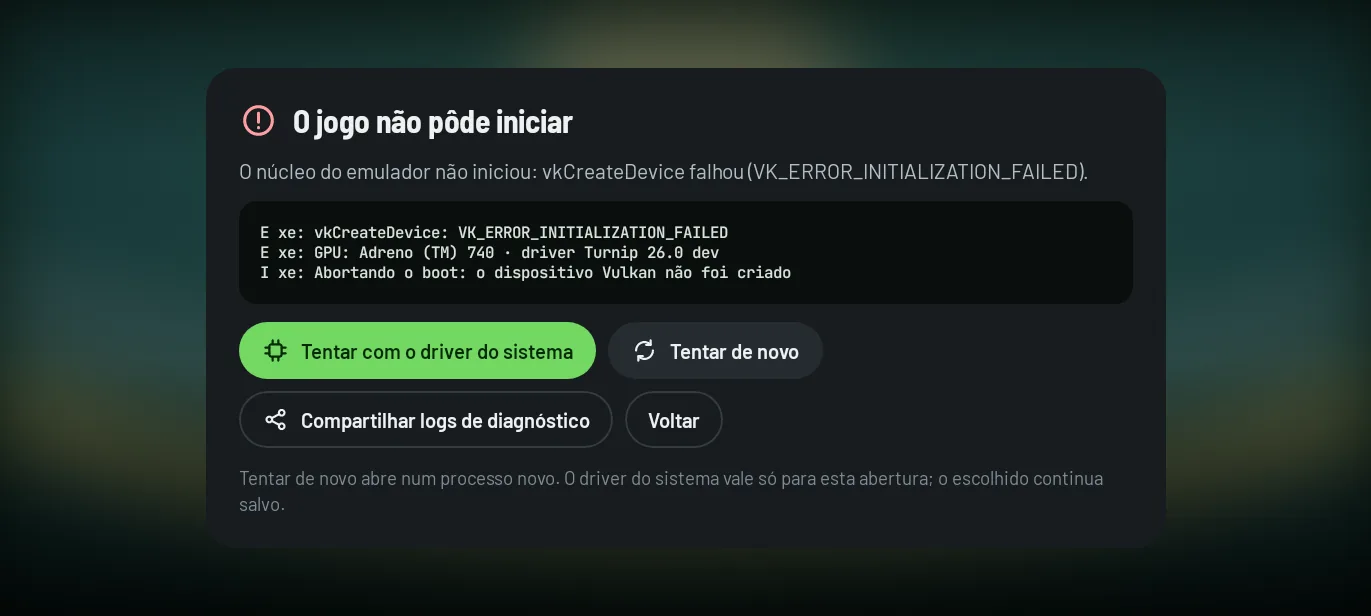
- Custom driver: if the game did not start with a driver such as Turnip, Try with the system driver starts it that one time with Android's driver. If that works, change the game's driver in Drivers.
- Game settings: in Start with…, Ignore the settings of this game starts it with the global settings only. If it starts, one of the game's own settings is the problem; Put everything back to global in the game's Details undoes them.
- Patches: in Start with…, Without patches starts it without the active patches.
- Format: check that the file is one of the supported formats and that the copy is complete.
After a failed session, the app can also suggest a fix (see suggestions after a session).
If the app shows “This device has no Vulkan GPU”, no game will start on that device; see the requirements.
The game is slow or stutters #
- Turn on the HUD to see FPS, frame time and temperatures.
- The first launch of a game is the slowest: the shaders are being built, and later sessions reuse them.
- Set Resolution scale back to 1×; in a game that does not reach its FPS limit at 1×, a higher scale makes things worse.
- A 30 FPS limit usually gives steadier pacing than a 60 that does not hold.
- On Adreno, try a recent Turnip driver.
- Heat: when the phone reaches its limit, the app warns you and performance drops. A lower FPS limit, 1× scale and not forcing maximum GPU clocks keep the device cooler.
To find out whether a change really helped, use Compare runs.
The game renders wrong #
- Try the system driver and a different Turnip.
- With Turnip, the Turnip flags
nolrz,noubwcandnomultiposfix some kinds of flickering, corrupted textures and stretched polygons, at a cost in speed. The defaultsysmemavoids one kind of Adreno GPU hang. - Check whether the game has notes or automatic fixes.
Crackling audio #
In Audio (Advanced level), a larger Audio buffer depth prevents crackling at the cost of latency, and Adaptive audio buffer grows on its own when there are dropouts. The app suggests a larger buffer when more than 1% of audio blocks arrive late.
Where logs are kept #
| What | Where |
|---|---|
| Emulator log of the current run | Android/data/xendroid.compose.fork/files/compose/xe.log |
| Earlier kept sessions | Android/data/xendroid.compose.fork/files/compose/logs/session_<date>.zip |
A session is one lifetime of the app's process. When you open the app again, the previous session becomes a ZIP with the xe.log, the app's own logcat, a context.json with the Title IDs and the version and, on Android 11 or newer, the exit reason (and the trace of a native crash or an ANR). The last 4 sessions are kept (from 1 to 16, in Log sessions to keep, All level); only the last 64 MB of each log goes in.
Log level (Error, Warning, Info or Debug) and Log filter (by subsystem) are in the Debugging group, at the All level.
Share a diagnostic #
Settings → App → Diagnostics and tests → Diagnostics lists the kept sessions and the current one, with the games in each, how it ended (ended normally, ended by Android, failed) and a summary. Share this session or Share all sessions makes a cleaned copy and opens Android's share sheet; the logs on the device do not change. The in-game menu has the same thing, in Session → Share diagnostic logs.
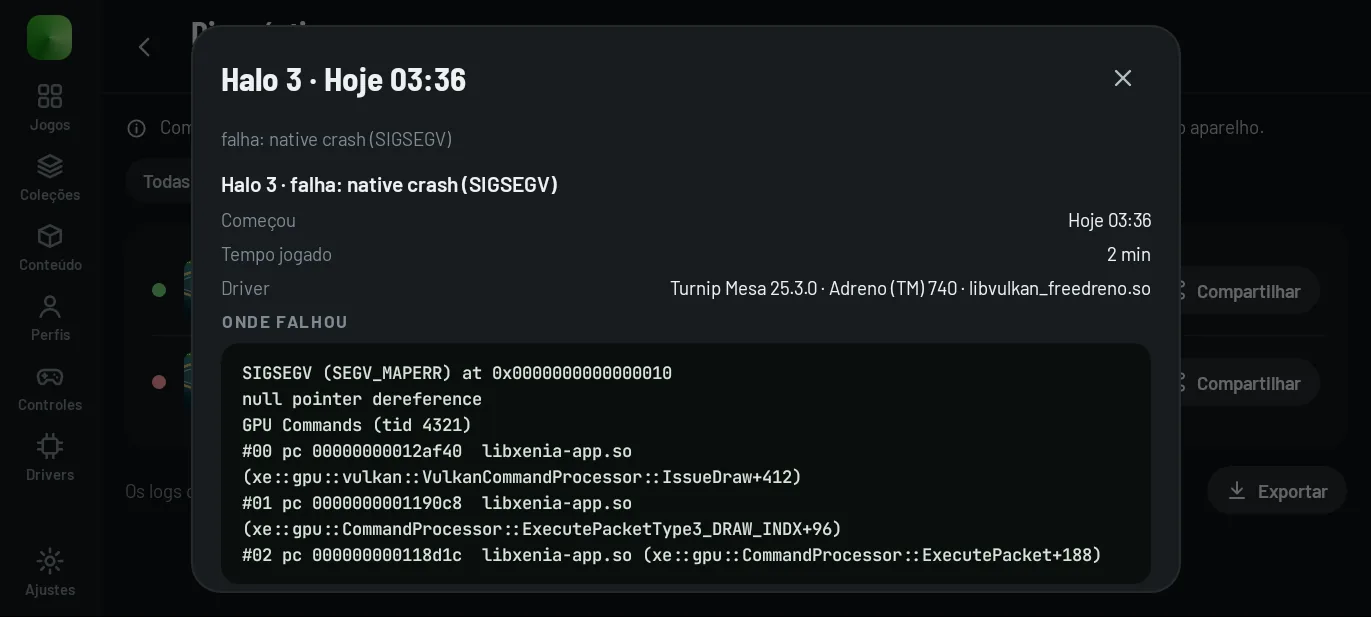
Before sharing, the app removes:
- file and folder paths;
- gamertags, XUIDs and profile names;
- IP addresses and e-mails;
- passwords and access tokens.
Only text goes in (xe.log, logcat, context and exit reasons); binary crash dumps never go. The copy stays in the app's cache and is deleted after 24 hours.
Export the raw logs #
Export session logs to Downloads (in Diagnostics and tests and in the Debugging group) creates Download/xendroid-logs-<date>.zip with every kept session and the current run, with nothing hidden. Prefer the diagnostic above for sharing in public.
From a computer, with adb #
With USB debugging on, you can pull the emulator log directly:
adb pull /sdcard/Android/data/xendroid.compose.fork/files/compose/xe.log
What to look for in xe.log #
| Line | What it tells you |
|---|---|
Storage root: … |
the data folder the core uses |
Extracted title_id XXXXXXXX from: … |
the Title ID of the opened game |
Game quirk for XXXXXXXX: <cvar> (<note>) |
an automatic fix that was applied |
Loading game config: … and Applied N game config override(s) |
the game's file and how many settings it brought |
Settings changed from defaults: N |
the list of everything that is not at its default, with · this game on what came from the game |
PatchDB: Loaded patches for N titles and Patcher: Applying patch for: … |
the patches loaded and the ones applied |
A config file value with the wrong type is discarded: the core warns that the value “had invalid types and have been reset to defaults”.
Report a problem #
Include the device (manufacturer, CPU, GPU, Android version), the app version (in About, with Copy all), the driver, the game and its Title ID, what you did and what happened, and the session diagnostic. The repository has a performance issue template, and the community talks on Discord.