
Controls
Touch controls, physical controllers from P1 to P4, key mapping, testing, vibration, gyroscope and the phone as a controller.
The Controls area brings together who plays as P1 to P4, the touch options, physical controllers, vibration and motion, phones as controllers, and four tools: Key mapping, Touch editor, Test controllers and Phone as controller.
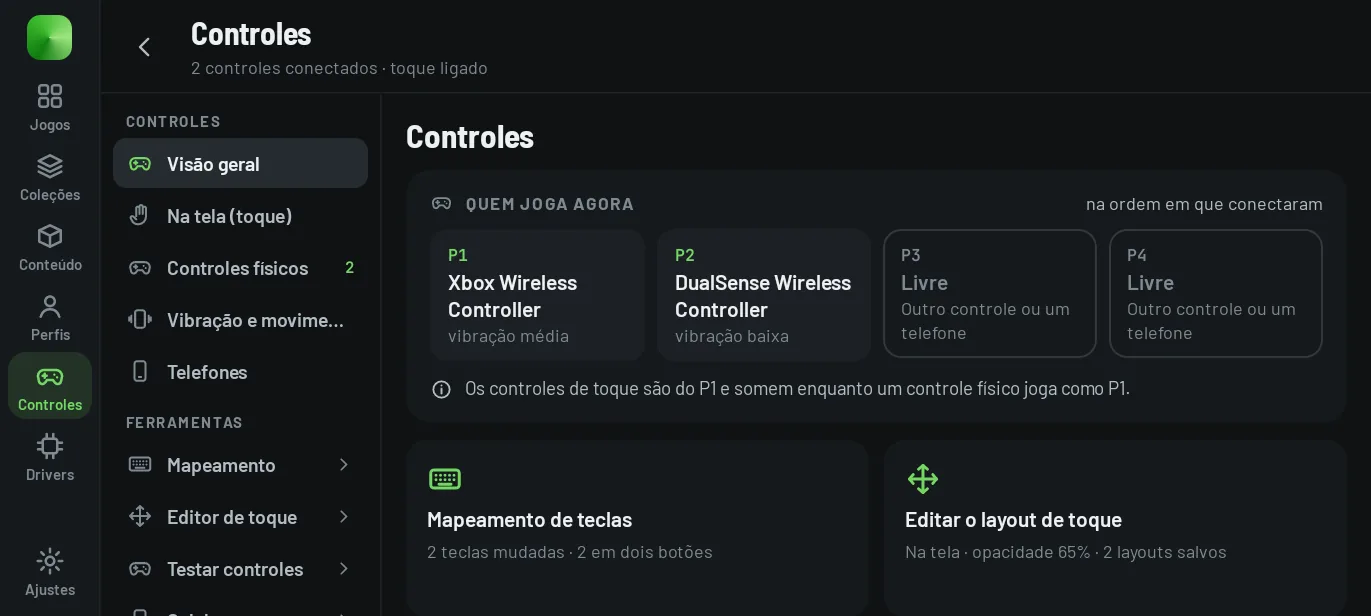
Who plays #
Controllers join as P1 to P4 in the order they connect. Without a physical controller, P1 uses the touch controls. Each player joins with the profile chosen in Profiles → Who plays (see profiles).
Touch controls #
| Option | Default |
|---|---|
| Touch controls (each game can change this in its Details) | on; they start off if a physical controller was connected on first launch |
| Look | Modern (dark glass, colored letters); Classic remains an option |
| Opacity | 65%, from 20 to 100% |
| Hide by itself | after 8 s; 0 turns it off |
| Haptics | off |
| Hide while a controller plays P1 | on |
| Split screen | off; or on a half-open foldable, or always |
| Sliding between the buttons and onto a stick | off |
| Touch camera (the free right side turns the camera) | off |
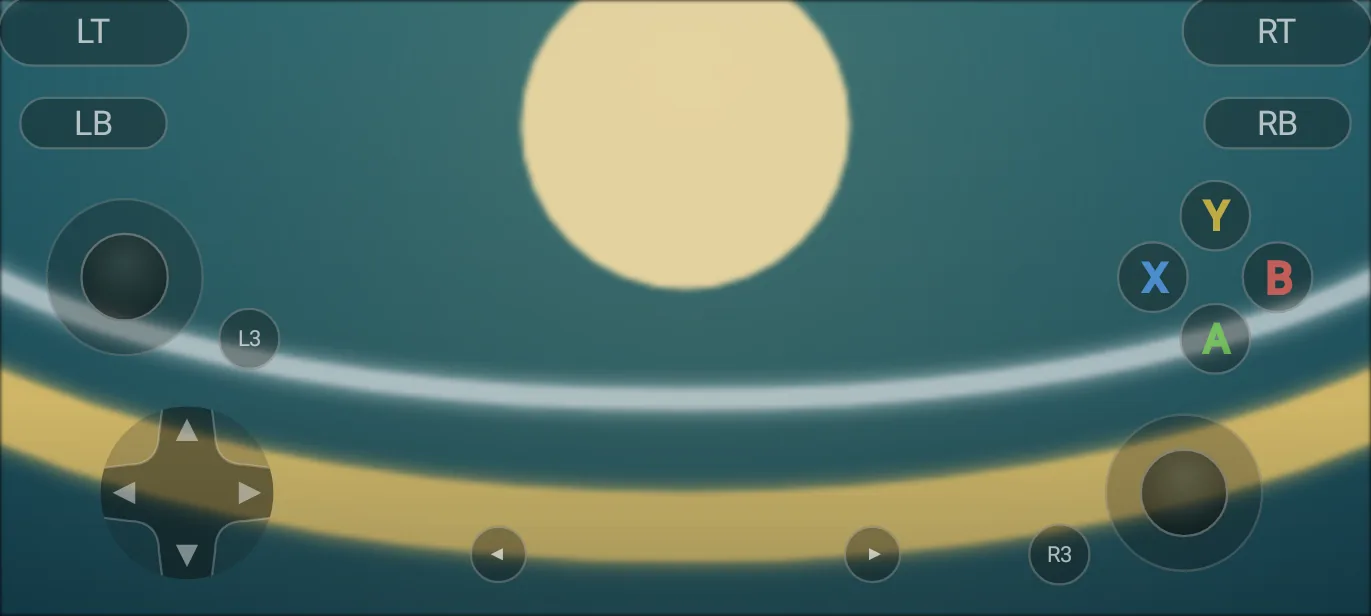
The Touch editor moves and resizes each control and sets its dead zone and what is shown, with snap to grid and undo. Saved layouts (up to 30) can apply to a single game and per orientation (portrait or landscape), and you can export and import them.
Physical controllers #
Each connected controller shows up with its own ID, whether it has a gyroscope, and its own vibration strength. The Core settings for controllers card holds the stick dead zones and the Guide button, for all games (each game can change them in its Details).
- Key mapping: the key for each of the 16 buttons. A key that is already in use swaps places with the other one; with a controller, A picks, Y clears and X swaps A/B and X/Y. Reset goes back to the original map. One map applies to every controller.
- Test controllers: the drawn controller lights up whatever you press, with the sticks (and the core dead zone, adjustable there), the triggers, the gyroscope and vibration. Nothing reaches a game; hold B for one second to leave.
Vibration and motion #
- Controller vibration: Off, Low, Medium (default) or High.
- Gyro camera (off by default), Gyro aim (Always, Holding LT or Holding LB) and Gyro sensitivity. Calibration is in the in-game menu. Without the sensor, the app says the phone has no gyroscope.
- Unbuffered input: on by default, Android 11 or newer only.
The in-game menu still changes these options on the spot; here are the values each game starts with.
Phone as controller #
Experimental. A second phone joins the game as P2, P3 or P4 (never P1):
- On the phone running the game: in-game menu → Controls → Phone controllers. The app starts a server and shows the address (IP:port) and a 6-digit code.
- On the other phone, with Xendroid+ installed: Controls → Phone as controller (“Use this phone as a controller”). Enter the address and the code and tap Connect.
Limits:
- private local network only (Wi-Fi, hotspot, Ethernet, USB or Bluetooth tethering), never mobile data, VPN or the internet;
- a new address and code each time the server starts;
- 10 wrong codes lock pairing until it is turned off and on again;
- both ends need the same protocol version.
The app's help text
The help text inside the game still says to open “Library → ⋮ → Use this phone as a controller”, an item the library menu no longer has. The right path is the one in the Controls area, above.
Not in the app yet #
These proposals from the interface redesign were left out, with the reason recorded in the redesign document:
- a key map for each controller (today one applies to all);
- finding the game on the network and scanning a QR code in phone as controller.
The simulator shows the Controls area and the four tools.