
App interface
Touch mode and controller mode, library, game details, in-game menu, HUD, profiles and saves.
The interface has two modes with the same areas and screens. The images on this page come from the app's screenshot tests and use sample games, covers and numbers.
Touch mode and controller mode #
- Touch: a rail with the app's areas on the left (in portrait, a bar at the bottom), and screens with sections on the left and content on the right.
- Controller: large vertical menus, tabs and sections switched with LB and RB, settings in ◀ value ▶ rows, button hints always visible, the color taken from the game's cover and a global menu on the Start button (≡).
In Settings → App → Interface → Interface mode: Automatic (default: uses controller mode while a controller is connected), Touch or Controller. Buttons in the menus swaps A and B in the app's menus, without changing the buttons in games.
Library #
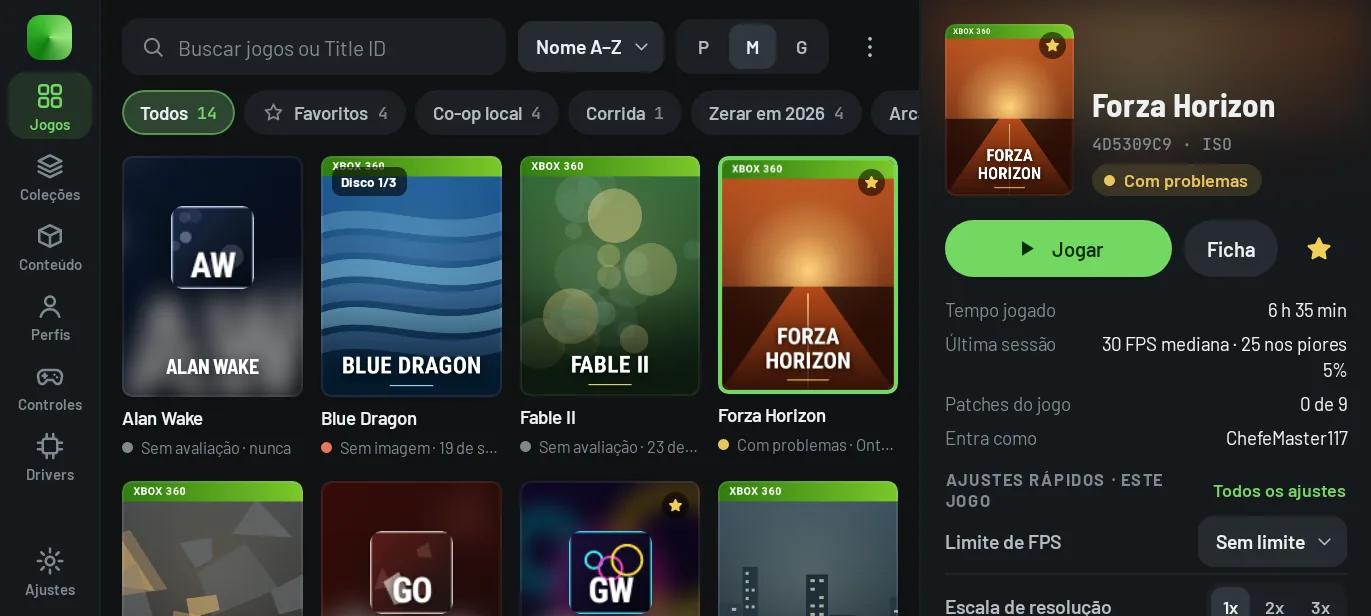
- Search by name or Title ID.
- Sort: Name A–Z (default), Name Z–A, Format or Recently played.
- Cover size: S, M or L.
- Filters always in view: All, Favorites, each collection and, when there is more than one, each format (ISO, ZAR, GOD, XBLA, XEX folder).
- Collections: up to 50, each with up to 5,000 games; a game stays in the collection even if its file moves.
In landscape, the first tap on a game shows the panel beside it (Play, Details, favorite, time played, last session, patches, which profile signs in and the quick settings); a long press opens the details. With a controller, Y marks a favorite and X opens the details.
The library's ⋮ menu holds Add game folder, Game folders, Games no longer in the library, Scan the folders again, Setup assistant, Open user data and Check for updates.
Game details #
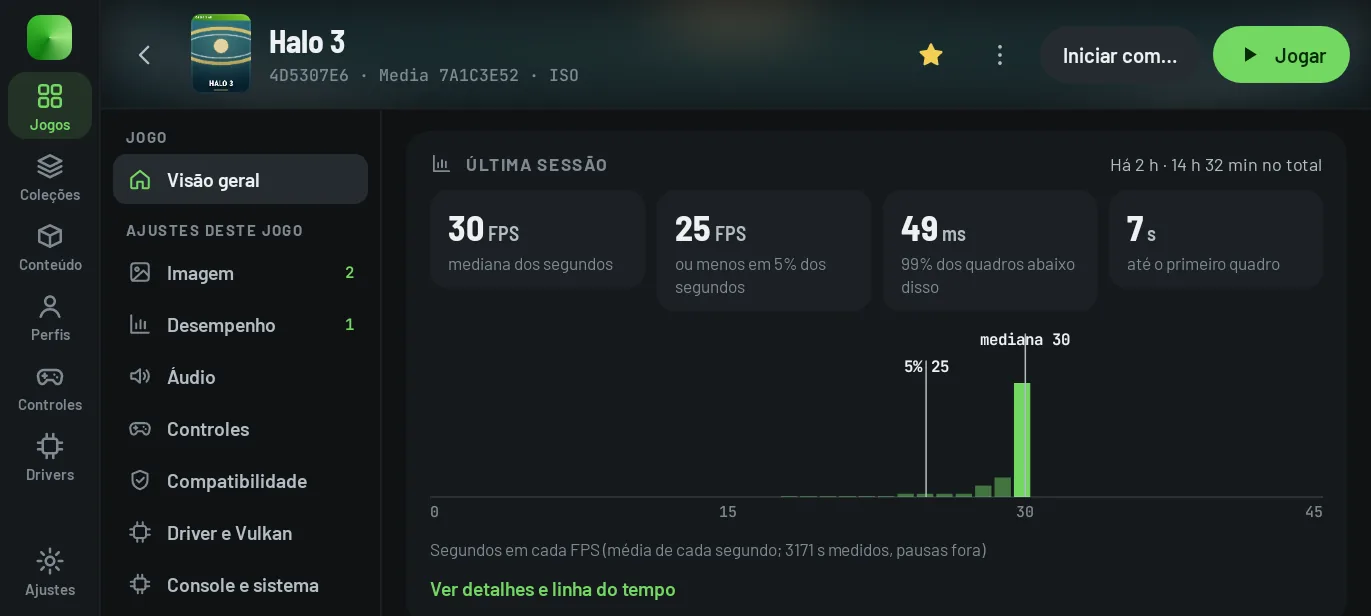
The sections of the details page, in touch mode:
- Overview: last session, quick settings, compatibility, patches and content.
- All settings and one item per group (Image, Performance, Audio, Controls, Compatibility, Driver and Vulkan, Console and system, Debugging): the settings for this game, with a switch to see the global ones. See Settings and effects.
- Performance: the selected session, with charts, the timeline and the settings in effect; a tap lists all of the game's sessions.
- Patches and content: patches in groups (for your version of the game, for other versions, no version stated), title updates and DLC.
- Saves and data: saves, shader cache, cover, compress to .zar (ISO only), home screen shortcut and the sessions in the diagnostics.
The details page's ⋮ menu has Change cover, Use the game's own icon, Collections, Create shortcut, Compress to .zar and Rate compatibility. The rating stays on your device only, stored with the app version, GPU and driver of that moment.
Start with… #
Opens the game once with options that are not saved:
- Profile that signs in to the game (with more than one profile);
- Driver: as configured, the system one or an installed package;
- Executable: another
.xexon the disc or in the package (launch_module); - Without patches: opens without the active patches;
- Ignore the settings of this game: uses only the global ones, to find out whether a setting causes the problem;
- Extra command line, passed to the game.
These options only apply when the game is opened from the library; frontends and shortcuts cannot pass them.
In-game menu #
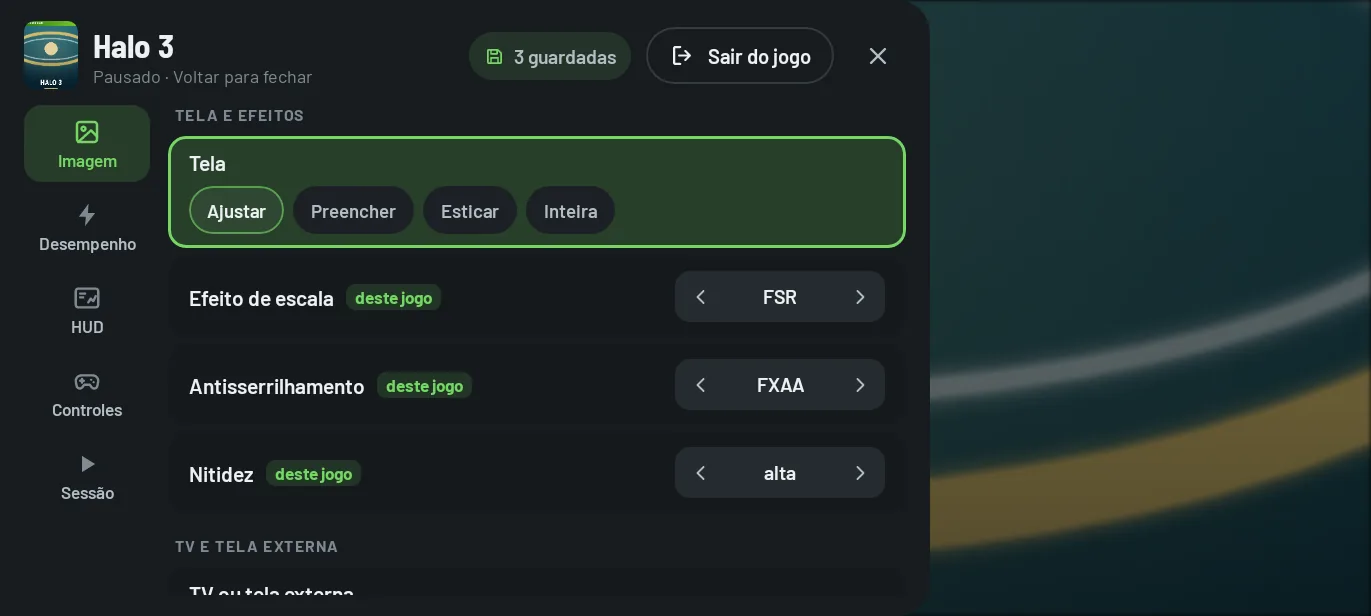
The menu opens when you swipe in from the left edge of the screen, with Android's Back or with the controller's Guide button (which also closes it). In the first session, a notice explains this. By default the game is paused while the menu is open (Session → Pause the game when the menu opens, which applies to every game).
With a controller: ↑ and ↓ move between rows, ◀ and ▶ change the value, A activates, LB and RB switch category and B closes.
| Category | What it has |
|---|---|
| Image | screen mode (Fit, Fill, Stretch, Integer), scaling effect, antialiasing, sharpness, dither, color filter, TV or external screen, frame generation and the driver in use |
| Performance | FPS limit, display refresh rate, live GPU options and, in the mode with more settings, power |
| HUD | show the HUD, layout, detail, metrics and look |
| Controls | on-screen controls, Modern or Classic look, adaptive sticks, touch camera, edit the layout, split screen, rumble, phone controllers and gyroscope |
| Session | volume, settings kept for the game, pause on open, screenshot, mark a scene, share logs, continue and exit the game |
Scaling, antialiasing, sharpness and dither change right away; the other image settings apply at the next launch. Advanced options sit behind More options in each category.
Since build 37
Performance → GPU performance changes four options while the game is running: Shaders without stutter, 4× MSAA as 2×, Cut-out transparency and Shading rate. Session → Screenshot saves the game's picture, without the menu or HUD, as a PNG in the Pictures/Xendroid+ folder.
What is kept for the game #
With Keep changes for this game on (default), what you change in the menu goes to that game's configuration: FPS limit, scaling effect, antialiasing, sharpness, dither, on-screen controls and volume, plus the screen mode, the color filter and the requested refresh rate. Rows with a value of their own say “this game”. Session holds Undo this session's changes and Use these changes in every game, which makes them global.
Frame generation is not kept: it starts off at every launch. Turning on the HUD and choosing the metrics applies to every game.
Live GPU options
From reading the code, “4× MSAA as 2×”, “Cut-out transparency” and “Shading rate” are not in the app's settings schema, so keeping these three for the game fails (the app warns that the change only lasts for the session). “Shading rate” also depends on a core option that ships turned off. This has not been checked on a device.
Performance HUD #
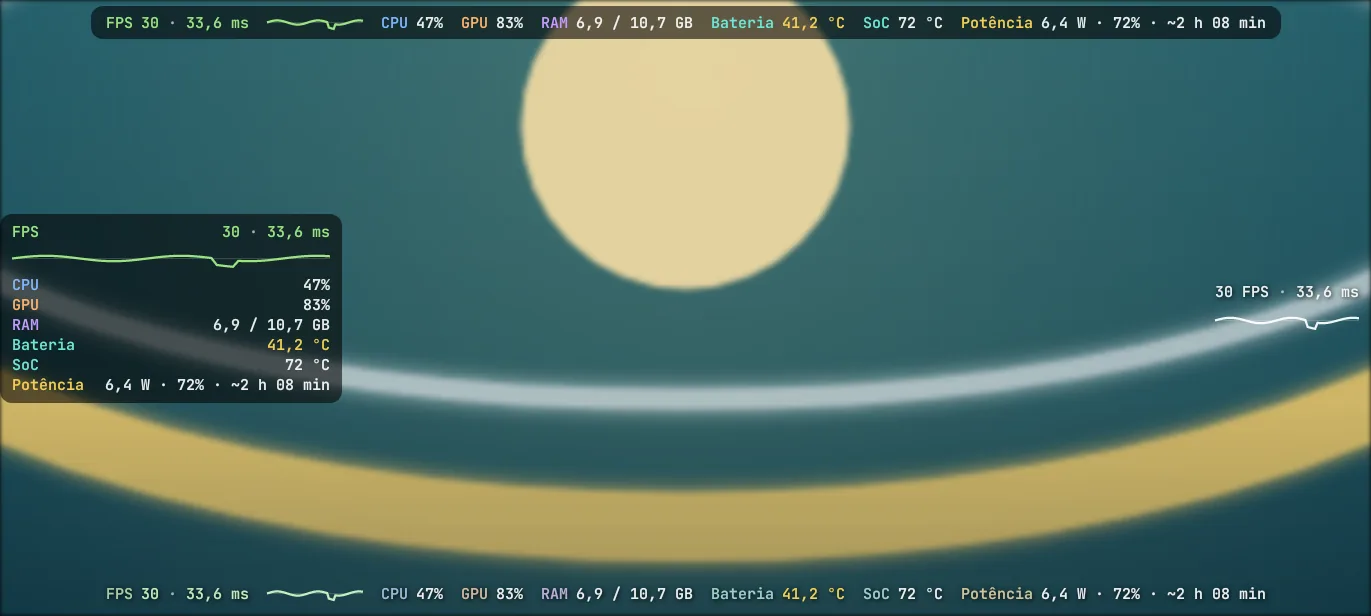
You turn on the HUD in in-game menu → HUD → Show the HUD (off by default), and it applies to every game.
- Layout: Vertical (a box you drag and resize with a pinch) or Horizontal (a bar at the top or bottom).
- Detail: FPS only, Metrics (default) or Panel.
- Metrics: CPU, GPU, RAM, GPU memory, battery and SoC temperature, power, charge, battery time and the FPS graph. Whatever the device does not report is left out.
- Look: style (Box, Outline, Text), size from 50 to 250%, background and color intensity.
The colors warn you: the battery turns yellow from 40 °C and red from 45 °C; the SoC, from 80 and 95 °C. Panel adds the pacing over the last 10 seconds and over the session, the work (pipelines created, late audio, heat) and the settings in effect.
Since build 37
With frame generation on, FPS shows as “game → screen” (for example, 29 → 57), and power became three separate metrics: Power, Charge and Battery time.
Profiles and saves #
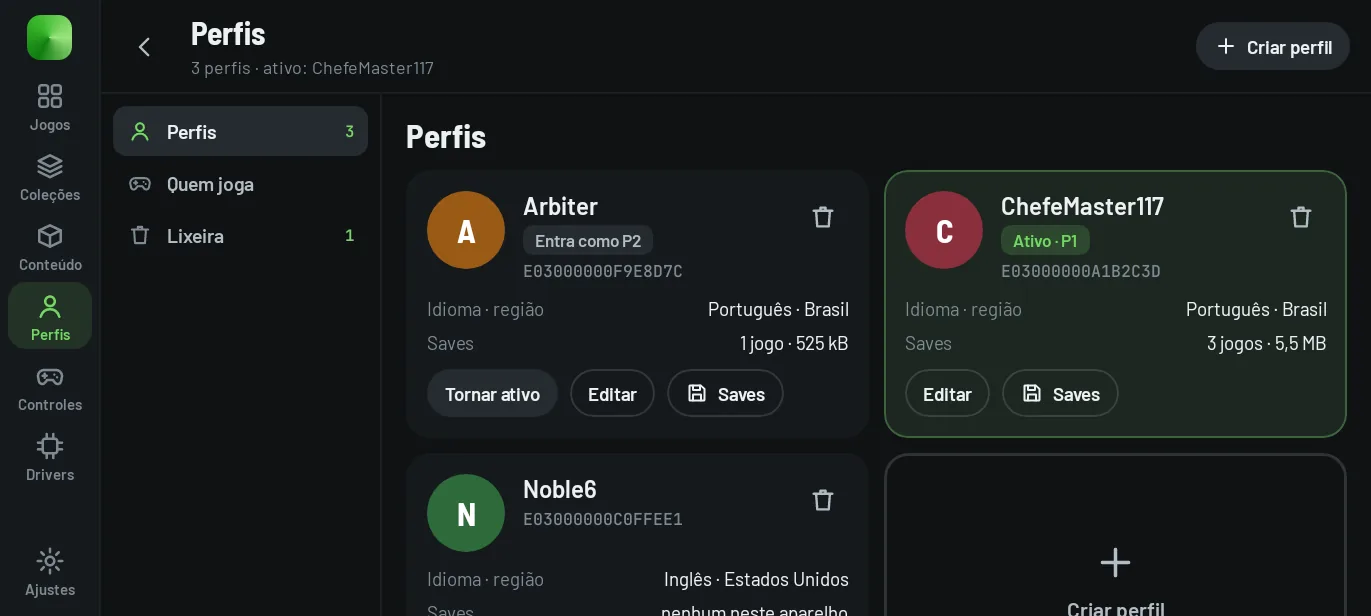
- Profiles: a gamertag of 1 to 15 characters, starting with a letter; avatar, language and region per profile.
- Who plays: the active profile is P1; the other players sign in with the profile chosen for P2 to P4. With more than one profile, the app asks who plays before each game (you can turn this off).
- Trash: deleting a profile sends it and its saves to the trash, where you can restore it or remove it for good.
Each game's saves are in its details page → Saves and data: per profile, with size and date. You can export the ones you choose to a ZIP (with or without the profile), import with a review before restoring, and choose a synchronization folder, local or in the cloud through the Android picker, where the app writes SHA-256-checked backups when you tap Synchronize now or, if you turn on the option, when you return to the library. Close the game before backing up or restoring.
See it in the simulator #
The simulator shows these screens in the browser, in both modes. Start with the library, the game details or the in-game menu. What in it is real data and what is a sample is explained in Using the simulator.